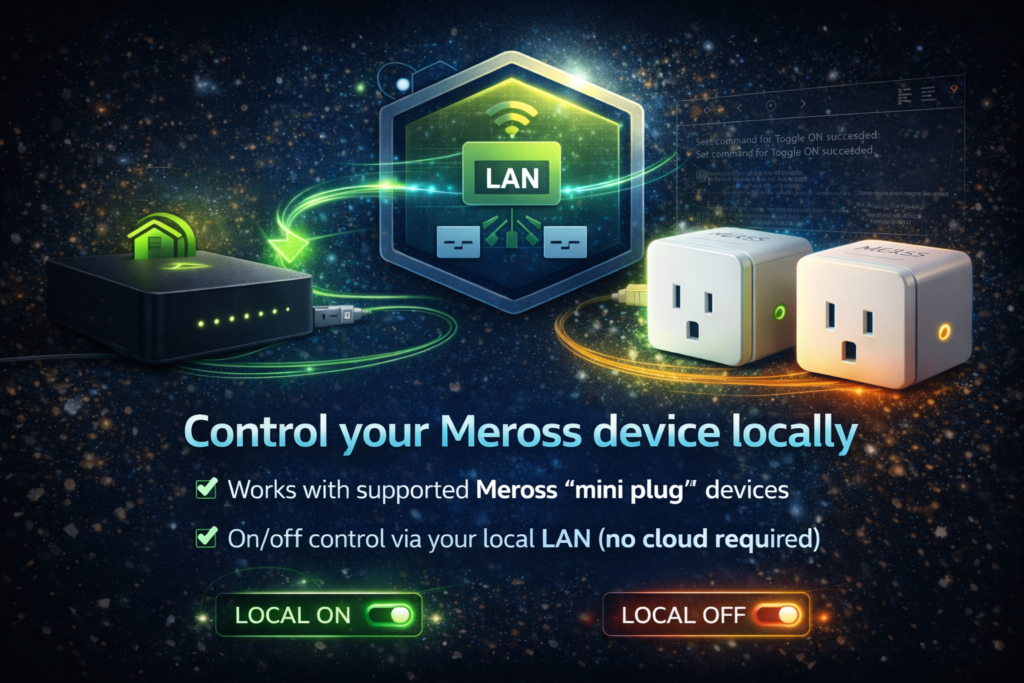
Control your Meross device locally
This Hubitat custom driver provides local LAN control for compatible Meross “mini plug” devices that support the classic Meross local API. The goal is simple: reliable on/off control without depending on cloud availability or introducing unnecessary latency.
Why this exists
Many Meross devices can be controlled locally on your network, but compatibility varies by model and firmware. This driver is designed to support common local control patterns (including both Toggle and ToggleX variants) and to behave like a standard Hubitat Switch so you can use it anywhere in Hubitat automations.
Devices
This has been tested on the following devices:
Model: MSS110
Firmware: 1.1.28 through 6.2.5
Hardware: 1.0.1 through 6.0.0
Key features
- Local on/off control and refresh (no cloud dependency)
- Supports common Meross local control variants (Toggle and ToggleX)
- Toggle-only option for older plugs like MSS110
- Channel support for devices that require it
- More resilient response parsing across typical Meross payload formats
- Automatically sets Hubitat LAN addressing (deviceNetworkId) based on the IP you provide for more reliable LAN routing
- Logging options for troubleshooting (Off, Basic, Debug)
- Built-in diagnostics fields: connectionStatus, lastRefresh, lastRefreshResult, lastError
- Quick validation via Run Test (records last test time and result)
Requirements
- Hubitat Elevation hub on the same LAN as the plug
- A stable IP address for the plug (DHCP reservation strongly recommended)
- Your Meross local key (treat this like a password)
- A Meross device and firmware that still supports local LAN control
Meross local key note
The Meross app does not display the local key. You must retrieve it using a third-party method. The project documentation includes a step-by-step guide for the Chrome DevTools login.js method.
Important note on compatibility
Not every Meross plug exposes local endpoints, and some firmware updates may reduce or remove local functionality. If your device does not respond to local control, the driver cannot force it. This project is best suited for users who want local-first automations and are comfortable reserving device IPs and providing the Meross local key.
Installation and configuration
Installation (Hubitat)
- In Hubitat, go to Drivers Code and create a new driver.
- Paste the driver code and save.
- Create a new device and assign this driver as the device type.
- Open the device page and set preferences (IP address, key, and channel if needed).
- Save preferences, then click Refresh to pull the current state, then test On/Off.
- Optional: run Run Test to validate connectivity and key configuration.
Configuration tips
Device IP Address
Reserve the plug’s IP in your router so it never changes. If the IP changes, local control will break until updated.
Key
Paste your Meross local key. Do not share it in screenshots or logs.
Device channel
Most single-outlet mini plugs use channel 0. If your device has multiple controllable outlets, a different channel may be required.
Toggle vs ToggleX
Some older devices respond better to the original Toggle method. If commands fail, switch between Toggle-only and ToggleX (and confirm the channel).
Using the driver in automations
Once configured, the device behaves like a normal Hubitat switch. Use it in Rule Machine, WebCoRE, dashboards, and integrations exposed through Hubitat (including voice assistants).
Troubleshooting
If On/Off does not work
- Confirm the IP is correct and reachable from the hub
- Confirm the plug has a DHCP reservation
- Verify the key is correct
- Try switching between Toggle-only and ToggleX
- Confirm channel is set correctly (often 0)
- Check the device’s diagnostics fields: connectionStatus, lastRefreshResult, lastError
- Set Logging to Debug, reproduce the issue, review Hubitat Logs, then return Logging to Off or Basic
If state does not update reliably
- Click Refresh and confirm lastRefreshResult shows Success
- Check connectionStatus and lastError for actionable details
- If needed, set Logging to Debug, reproduce the issue, then review Hubitat Logs (redact sensitive details)
Support
If you need help, use the Support page on this site and include: project name, version, Hubitat firmware, plug model (if known), steps to reproduce, and relevant logs (redacting keys/tokens).