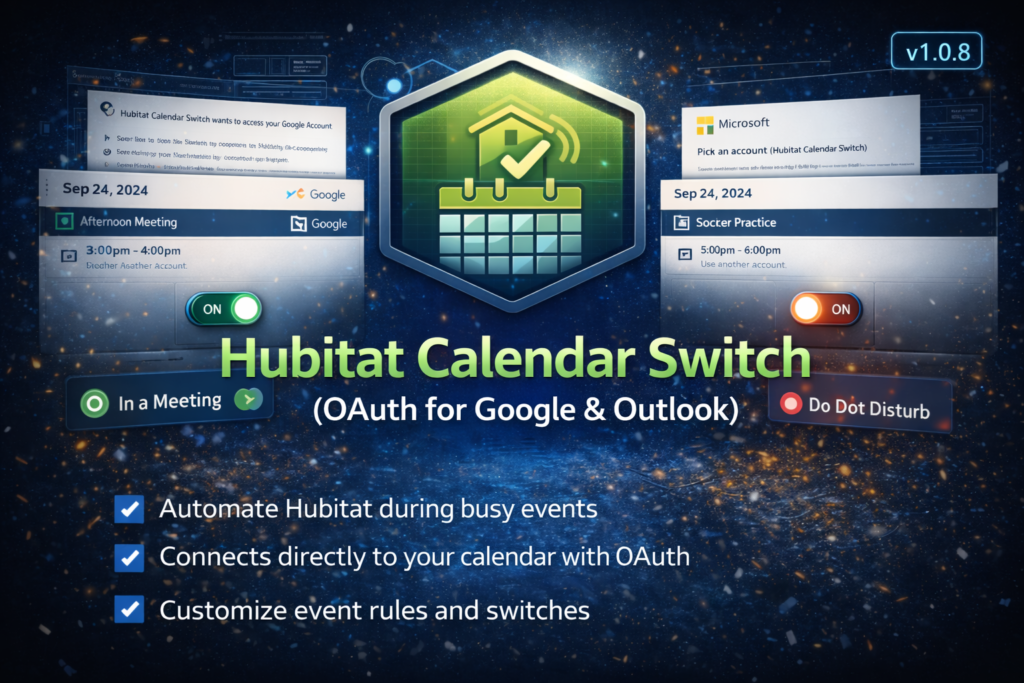
If you use Hubitat and depend on your calendar, you have probably wanted a clean way to turn “I’m busy” into automations. Hubitat Calendar Switch (OAuth) does exactly that, using direct OAuth connections to Google Calendar and Microsoft 365 (Outlook).
This project installs as a Hubitat app plus a child switch driver. The app handles authentication and event fetching. Each switch holds its own rules (must include words, ignore words, timing buffers, and filters) and controls its own On/Off state. From there, you can use the switch in Rule Machine, Mode Manager, notifications, dashboards, and more.
What it does
- Connects to Google Calendar and/or Microsoft 365 using OAuth (no ICS feed required)
- Fetches calendar events on a schedule and normalizes them into a consistent event list
- Creates one virtual switch per rule set (example: Work Busy, Kids Sports, Do Not Disturb)
- Turns the switch On when a matching event is active (with optional before/after buffers), and Off when no matching event is active
- Lets each switch define its own match logic:
- Must include words (optional)
- Ignore words (optional)
- Timing (minutes before start, minutes after end)
- Filters (busy-only, all-day allowed, private allowed)
- Includes device-level “Fetch now and apply” / “Test now” tools for quick validation
Why this is useful
- Quiet hours when a “Meeting” event is active
- Auto-silence announcements, chimes, or TTS during appointments
- Pause robot vacuums during calls
- Trigger “work mode” only when your calendar shows you are busy
- Drive dashboard indicators (Busy / Free, In a meeting, Do Not Disturb)
- Run different switches for different rule sets (Work vs Personal, specific keywords, etc.)
How it works (high level)
- Authenticate the app to Google and/or Microsoft (OAuth)
- The app fetches events every X minutes (configurable)
- Each switch re-evaluates every minute using the most recently fetched events
- The switch applies its own rules and decides whether it should be On or Off
- You use the switch state in automations anywhere in Hubitat
One important design choice: the app does not implement keyword matching. All match rules live on the child switch. This keeps the system simple to reason about (one switch = one set of rules) and makes switch behavior easy to test and tune.
Getting started
Prerequisites
- A Hubitat Elevation hub
- A Google account (for Google Calendar) and/or Microsoft account (for Microsoft 365 / Outlook)
- OAuth credentials:
- Google Cloud Console (Client ID + Client Secret), and/or
- Microsoft Entra ID (Azure) App Registration (Client ID + Client Secret)
Install and configure
- Install the child driver in Hubitat (Drivers Code)
- Install the app in Hubitat (Apps Code) and enable OAuth for the app
- Add the app (Apps – Add User App)
- Enter your Google and/or Microsoft credentials and click Authorize
- Add a switch:
- Choose provider
- Name the switch
- Optionally specify a calendar ID (Google supports targeting a specific calendar; Microsoft defaults to primary)
- Open the switch device and set:
- Must include words and/or Ignore words
- Timing buffers (minutes before/after)
- Filters (busy-only, all-day, private)
- Use Test now (or Fetch now and apply) to validate behavior immediately
Support
If you need help, use the Support page on this site and include:
- Project name and version
- Hubitat model/firmware
- Provider (Google or Microsoft)
- What you expected vs what happened
- Steps to reproduce
- Relevant logs or screenshots (redact any tokens, secrets, or sensitive event details)