Author: Chris

  • CT Safe Recovery

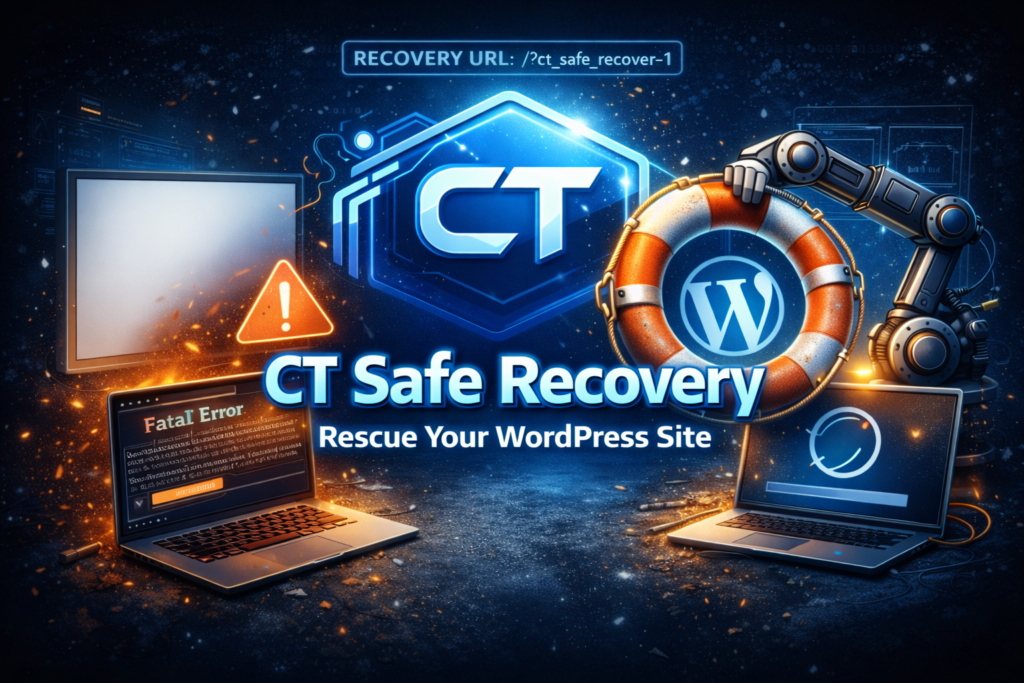
    Rescuing Your WordPress Site from the White Screen of Death: Introducing CT Safe Recovery
    v0.3.9

    We’ve all been there: you click “Activate” on a new plugin or push a quick code change, and suddenly—silence. The “White Screen of Death” stares back at you, or a fatal error locks you out of your own dashboard. Usually, this means scrambling for your SFTP credentials or logging into a hosting control panel just to rename a folder and get your site back.

    I wanted a better, faster way to handle these “oops” moments directly from the browser. That’s why I built CT Safe Recovery.


    What is CT Safe Recovery?

    CT Safe Recovery is a lightweight safety net for WordPress developers and site owners. It installs a tiny “Must-Use” (MU) plugin that acts as an emergency bypass. If a plugin crashes your site, you can trigger a Safe Mode that temporarily silences all standard plugins, allowing you to log in and fix the problem without touching a single file via FTP.

    Key Features

    • One-Click Safe Mode: Use a simple URL parameter to bypass crashing plugins and regain access to your admin dashboard.
    • Sticky Sessions: Once you enter Safe Mode, it stays active for your browser session, so you can navigate to the Plugins page or Settings without getting locked out again.
    • The Kill Switch: Know exactly which plugin caused the crash? You can disable it instantly by adding a specific command to your URL.
    • Zero Footprint: Safe Mode only affects your view. Your site visitors won’t even know you’re performing surgery under the hood.

    How to Use It in an Emergency

    If your site crashes, don’t panic. Just follow the Crash Recovery Workflow:

    1. Enter Safe Mode: Navigate to your site’s recovery URL: your-site.com/wp-admin/?ct_safe_recover=1
    2. Fix the Issue: Once the dashboard loads, you have two choices:
      • Option A: Go to the Plugins page (which will now load safely) and deactivate the broken plugin.
      • Option B (Kill Switch): Use a URL parameter to force-disable the plugin: ?ct_safe_recover=1&ctc_disable=plugin-folder/plugin-file.php
    3. Exit Safe Mode: Once everything is stable, simply click “Exit Safe Mode” in the admin bar or visit: your-site.com/wp-admin/?ct_safe_recover=0

    Free to Use, Supported by You

    I believe in building tools that make the WordPress ecosystem better and more accessible. I’m releasing CT Safe Recovery for free because I know how stressful a crashed site can be.

    If this plugin saves you a few hours of headaches (or a frantic call to tech support), please consider dropping a tip in the jar. Your support helps me keep these tools updated and allows me to keep building new ones for the community.
  • CT Forms

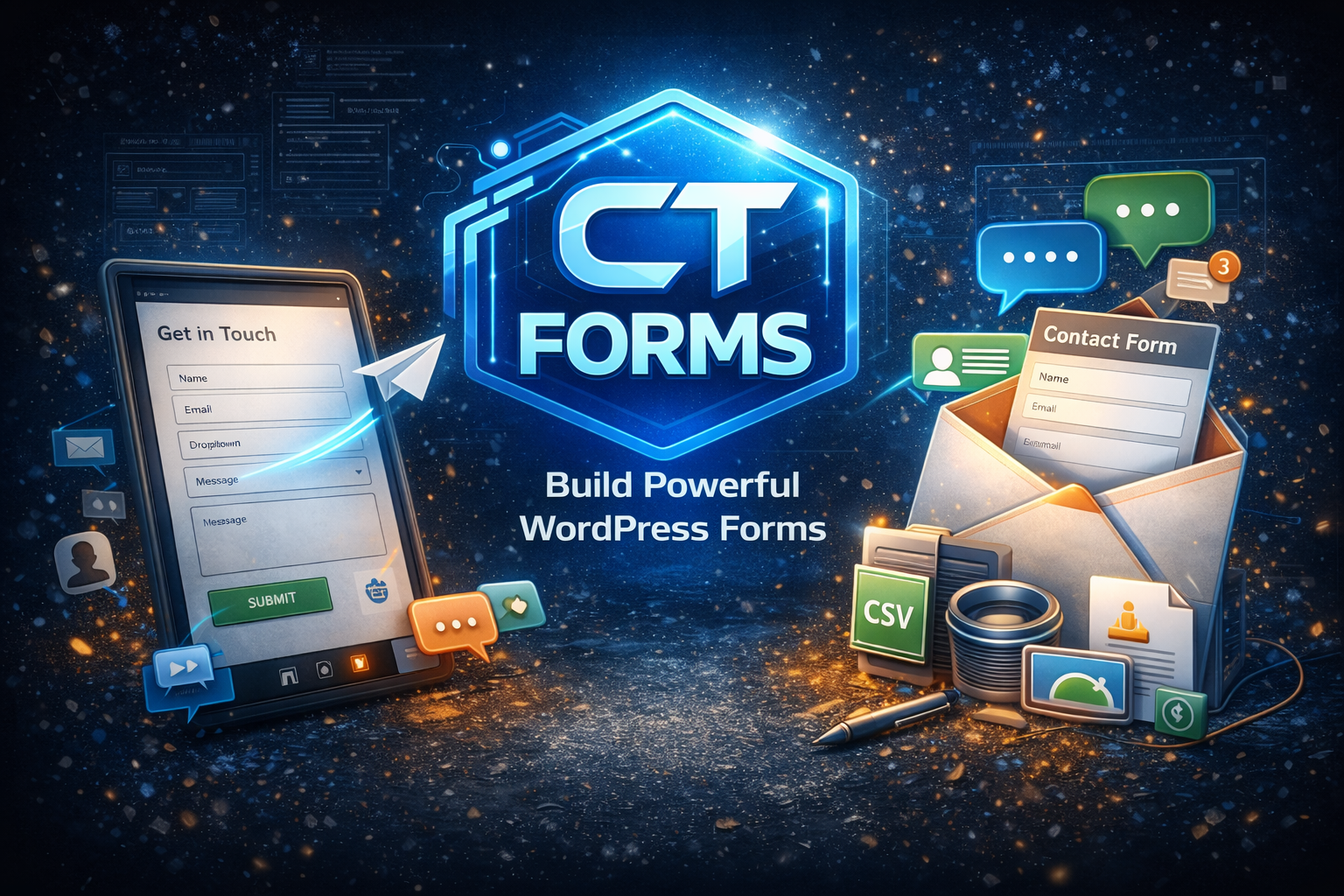
    Meet CT Forms: The Lightweight, No-Nonsense Form Builder for WordPress

    v1.0.50

    Finding a form plugin that balances power with simplicity can be a challenge. Many options are either too bloated or lack essential features like secure file handling and easy exports. CT Forms was built to fill that gap—providing a streamlined, reliable solution for WordPress admins who need to get things done without the extra weight.


    Why Choose CT Forms?

    CT Forms is designed specifically for admin usability and database efficiency. Unlike other plugins that clutter your metadata tables, CT Forms uses dedicated storage to keep your site fast and your data organized.

    • Visual Form Builder: Create everything from simple contact forms to complex applications using text fields, dropdowns, radio buttons, and checkboxes.
    • Secure File Uploads: A built-in management screen allows you to view, download, or bulk-delete attachments effortlessly.
    • Smart Notifications: Stay informed with admin alerts and send personalized autoresponders to users. Use dynamic tokens like {all_fields} or {entry_id} to automate your workflow.
    • Easy Data Portability: Need your data in Excel? Use the one-click CSV export to move your entries wherever you need them.

    Enhanced Security with reCAPTCHA v3 Support

    Security shouldn’t come at the expense of user experience. With the latest v1.0.45 update, CT Forms now supports:

    • reCAPTCHA v3: Block bots silently without forcing users to solve puzzles.
    • v2 Options: Choose between the classic “I’m not a robot” checkbox or the invisible v2 badge.
    • Score Verification: The backend automatically verifies v3 scores to ensure only genuine humans get through.

    Getting Started in 3 Steps

    Getting your first form live takes less than two minutes:

    1. Install: Upload the plugin ZIP via your WordPress Dashboard (Plugins > Add New > Upload).
    2. Build: Navigate to CT Forms > Forms to design your fields.
    3. Publish: Copy the generated shortcode (e.g., ) and paste it into any page or post.

    Technical Snapshot & FAQ

    Where is my data stored? Entries are kept in a dedicated database table for maximum performance. You can find them under CT Forms > Entries, featuring a full search and bulk-action suite.

    How are file uploads handled? Files are stored securely at /wp-content/uploads/ct-forms/. The admin interface includes a dedicated attachment indicator so you never miss an uploaded document.

    System Health: The plugin includes a System Diagnostics tool within the Support page, making it easy to troubleshoot server-side issues or configuration errors instantly.


    Ready to streamline your site’s data collection? Would you like me to draft a series of social media posts to help promote this new plugin release?

  • CT Under Construction Page

    Maintain your site’s professional image while working behind the scenes

    v1.0.3

    A clean, professional “site under construction” page for WordPress – with a simple admin toggle, optional countdown, and lightweight performance.

    Summary

    CT Under Construction lets you put your WordPress site into an “under construction” mode while you work – without installing a heavy maintenance suite. Enable it with one switch, customize the message and look, and keep admin access so you can build in peace.

    Why this plugin exists

    Sometimes you just need a polished holding page while a site is being built, migrated, redesigned, or repaired. CT Under Construction is intentionally focused:

    • fast to enable
    • simple to configure
    • minimal footprint
    • professional default appearance

    Key features

    • one-click enable/disable
      Turn the under construction page on or off from your WordPress dashboard.
    • customizable messaging
      Add your own headline and message so visitors know what’s happening.
    • styling controls
      Choose colors to match your brand without needing to edit theme files.
    • optional countdown
      Set a target date/time to display a countdown for a relaunch or “back soon” moment.
    • optional progress indicator
      Show a simple progress percentage to indicate how far along you are.
    • admin-safe behavior
      Admins can stay logged in and work normally while visitors see the holding page.
    • SEO-friendly maintenance response
      Serves an appropriate maintenance response (503) so search engines understand the downtime is temporary.

    Best use cases

    • launching a new website
    • redesigning an existing site
    • moving hosts or domains
    • fixing a broken theme/plugin conflict
    • building a client site before go-live
    • temporary maintenance without a complex maintenance plugin

    How it works

    When enabled, CT Under Construction shows a dedicated holding page to visitors while allowing administrators to continue working in WordPress. You can control the message, colors, and optional elements like countdown and progress – all from a simple settings screen.

    Setup guide

    1. Install and activate
    • Upload the plugin zip in WordPress: Plugins → Add New → Upload Plugin
    • Activate CT Under Construction
    1. Enable under construction mode
    • Go to Settings → CT Under Construction
    • Turn on “Enable Under Construction Mode”
    1. Customize the page
    • Add your message text
    • Adjust color settings to match your site
    • Optional: set a countdown target
    • Optional: set a progress percentage
    1. Save changes
      Your site will show the under construction page to visitors immediately after saving when enabled.

    FAQ

    Does this lock me out of WordPress?
    No. Administrators can continue to access the dashboard and work as normal.

    Will this hurt SEO?
    The plugin uses a temporary maintenance response (503) so search engines understand the downtime is not permanent. Keep the mode enabled only as long as needed.

    Can I preview changes before enabling?
    Yes – configure the settings first, then enable it when ready.

    Does it work with caching plugins?
    Usually, yes. If you use aggressive page caching, you may want to purge cache after enabling or changing settings.

    Does it work with page builders?
    Yes. It does not rely on a page builder – it outputs a lightweight holding page.

    Roadmap

    CT Under Construction is intentionally simple, but future enhancements may include:

    • more template styles (still professional and minimal)
    • logo upload option
    • social links (optional)
    • email capture integration (optional)

    Support

    If you need help, found a bug, or want to request a feature:

    • Use the support form on this site
    • Include your WordPress version, theme name, and any caching/security plugins you’re using
    • If possible, include a screenshot of the settings screen and the page you’re seeing

    Changelog

    1.0.0

    Initial release

  • Hubitat Calendar Switch (OAuth for Goolge & Outlook)

    v1.0.8

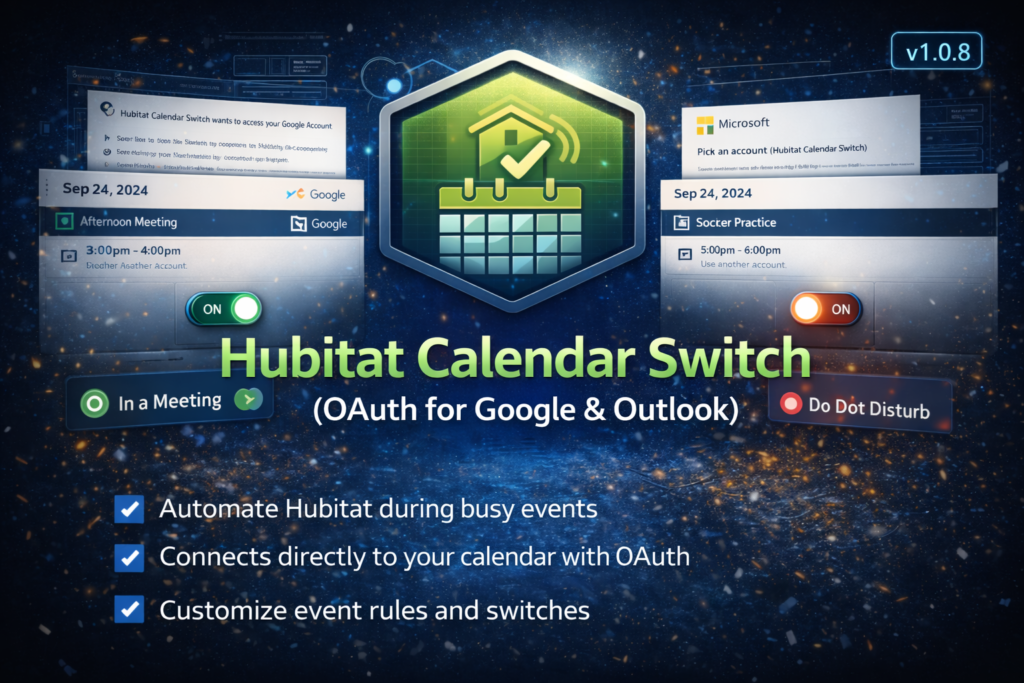
    If you use Hubitat and depend on your calendar, you have probably wanted a clean way to turn “I’m busy” into automations. Hubitat Calendar Switch (OAuth) does exactly that, using direct OAuth connections to Google Calendar and Microsoft 365 (Outlook).

    This project installs as a Hubitat app plus a child switch driver. The app handles authentication and event fetching. Each switch holds its own rules (must include words, ignore words, timing buffers, and filters) and controls its own On/Off state. From there, you can use the switch in Rule Machine, Mode Manager, notifications, dashboards, and more.

    What it does

    • Connects to Google Calendar and/or Microsoft 365 using OAuth (no ICS feed required)
    • Fetches calendar events on a schedule and normalizes them into a consistent event list
    • Creates one virtual switch per rule set (example: Work Busy, Kids Sports, Do Not Disturb)
    • Turns the switch On when a matching event is active (with optional before/after buffers), and Off when no matching event is active
    • Lets each switch define its own match logic:
      • Must include words (optional)
      • Ignore words (optional)
      • Timing (minutes before start, minutes after end)
      • Filters (busy-only, all-day allowed, private allowed)
    • Includes device-level “Fetch now and apply” / “Test now” tools for quick validation

    Why this is useful

    • Quiet hours when a “Meeting” event is active
    • Auto-silence announcements, chimes, or TTS during appointments
    • Pause robot vacuums during calls
    • Trigger “work mode” only when your calendar shows you are busy
    • Drive dashboard indicators (Busy / Free, In a meeting, Do Not Disturb)
    • Run different switches for different rule sets (Work vs Personal, specific keywords, etc.)

    How it works (high level)

    1. Authenticate the app to Google and/or Microsoft (OAuth)
    2. The app fetches events every X minutes (configurable)
    3. Each switch re-evaluates every minute using the most recently fetched events
    4. The switch applies its own rules and decides whether it should be On or Off
    5. You use the switch state in automations anywhere in Hubitat

    One important design choice: the app does not implement keyword matching. All match rules live on the child switch. This keeps the system simple to reason about (one switch = one set of rules) and makes switch behavior easy to test and tune.

    Getting started

    Prerequisites

    • A Hubitat Elevation hub
    • A Google account (for Google Calendar) and/or Microsoft account (for Microsoft 365 / Outlook)
    • OAuth credentials:
      • Google Cloud Console (Client ID + Client Secret), and/or
      • Microsoft Entra ID (Azure) App Registration (Client ID + Client Secret)

    Install and configure

    1. Install the child driver in Hubitat (Drivers Code)
    2. Install the app in Hubitat (Apps Code) and enable OAuth for the app
    3. Add the app (Apps – Add User App)
    4. Enter your Google and/or Microsoft credentials and click Authorize
    5. Add a switch:
      • Choose provider
      • Name the switch
      • Optionally specify a calendar ID (Google supports targeting a specific calendar; Microsoft defaults to primary)
    6. Open the switch device and set:
      • Must include words and/or Ignore words
      • Timing buffers (minutes before/after)
      • Filters (busy-only, all-day, private)
    7. Use Test now (or Fetch now and apply) to validate behavior immediately

    Support

    If you need help, use the Support page on this site and include:

    • Project name and version
    • Hubitat model/firmware
    • Provider (Google or Microsoft)
    • What you expected vs what happened
    • Steps to reproduce
    • Relevant logs or screenshots (redact any tokens, secrets, or sensitive event details)

  • Hubitat Alexa Routine Trigger – Driver-Only

    Hubitat Alexa Routine Trigger – Driver-Only (same results, fewer moving parts)

    v0.9.0

    Overview

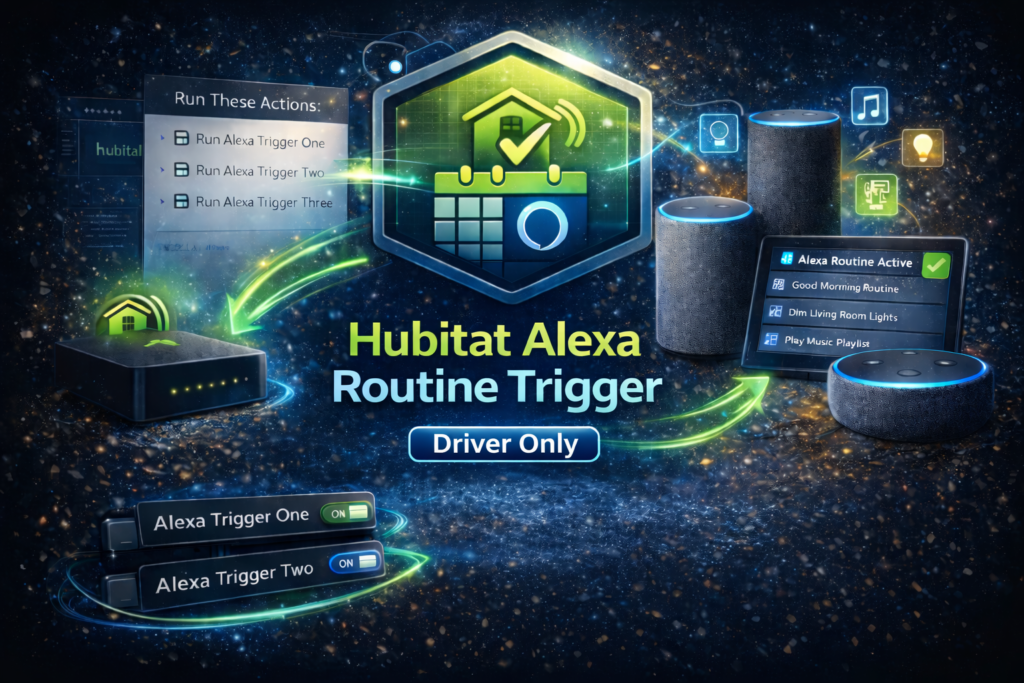
    Driver-only edition is the lightweight version of Hubitat Alexa Routine Trigger. Instead of installing a Hubitat app plus multiple drivers, you install a single virtual device driver and create your trigger devices directly in Hubitat’s Devices page.

    It still uses the same proven approach: Hubitat opens a virtual contact sensor, Alexa sees the Open event, and your Alexa routine runs. The device then auto-closes after a configurable delay so it is ready for the next trigger.

    Why a driver-only edition

    This version is for users who want the simplest possible install and the fewest moving parts:

    • No Hubitat app to install or maintain
    • Create triggers using Hubitat’s built-in “Add Virtual Device” flow
    • Ideal for one-off triggers and smaller setups
    • If you need bulk trigger creation, trigger groups, or an in-app management UI, use the full Hubitat Alexa Routine Trigger app package instead. README

    Common use cases

    • Trigger Alexa routines from Rule Machine automations
    • Drive Alexa announcements, music, scenes, and smart home actions from Hubitat logic
    • Create dedicated triggers for key automations (doorbell, washer done, bedtime, movie mode, etc.)

    How it works

    You create a virtual contact sensor in Hubitat and assign it this custom driver.

    • Your Hubitat automation calls the driver’s trigger command (or opens the contact sensor).
    • Alexa detects the sensor “Open” event and runs a routine.
    • The driver auto-resets the sensor back to Closed after a set number of seconds.

    Prerequisites

    Hubitat Elevation hub

    • Amazon Alexa account plus Alexa app
    • Hubitat built-in integration: Amazon Echo Skill (required so Alexa can discover the trigger device)
    • Important: this project relies on Hubitat’s Amazon Echo Skill. It does not replace it.

    Install (Hubitat)

    You will install:

    One custom driver (driver-only edition)

    Step 1 – install the driver

    In Hubitat:

    1. Go to Drivers Code.
    2. Click New Driver.
    3. Paste the driver code.
    4. Save.

    Step 2 – create a trigger device

    In Hubitat:

    1. Go to Devices.
    2. Click Add Device.
    3. Choose Virtual.
    4. Create a Virtual Device.
    5. Name it something Alexa-friendly (example: “Alexa Trigger – Movie Mode”).
    6. For Type, select the driver you just installed (the driver-only trigger driver).
    7. Save.

    Step 3 – configure the device

    On the device page, set:

    Reset after (seconds)

    Ignore repeated triggers from Hubitat within (ms)

    Then click Save Preferences.

    Alexa setup (required)

    Step 1 – enable Hubitat’s Amazon Echo Skill

    In Hubitat, add the built-in Amazon Echo Skill app and link it to Alexa.

    Step 2 – expose your trigger device to Alexa

    In the Amazon Echo Skill app, select the virtual contact sensor you created.

    Step 3 – discover devices in Alexa

    In the Alexa app, run device discovery. The trigger should appear as a contact sensor.

    Create Alexa routines

    Create one routine per trigger device:

    When this happens – Smart Home – select the contact sensor – choose Open

    Add the actions you want Alexa to run

    Save

    Using it from Hubitat automations

    Rule Machine (typical)

    In Rule Machine, add an action that runs the device command provided by the driver (commonly a Trigger command). This keeps routines reliable and avoids leaving the sensor open.

    Recommended test order

    Confirm Alexa can see the trigger device after discovery

    Create an Alexa routine that triggers on Open

    In Hubitat, press the driver’s Test button (if provided) or run the Trigger command

    Confirm the Alexa routine runs, then confirm the contact sensor auto-closes

    Understanding the key settings

    Reset after (seconds)

    How long the trigger stays Open before it automatically closes again. Typical values are 3–10 seconds. Setting this to 0 disables auto-close (not recommended for most users).

    Ignore repeated triggers from Hubitat within (ms)

    Prevents accidental double-fires caused by rapid repeated events. Set to 0 to disable. Typical values are 250–750 ms if you see duplicates.

    Troubleshooting

    Alexa routine does not trigger

    Confirm the trigger device is selected in Hubitat’s Amazon Echo Skill app

    Re-run Alexa device discovery

    Confirm the routine triggers on Open (not Close)

    Increase Reset after (seconds) slightly (example: 7–10)

    Double-fires

    Increase Ignore repeated triggers from Hubitat within (ms) (example: 250–750)

    Security and privacy notes

    This project creates local virtual devices and uses Hubitat’s Amazon Echo Skill to share them with Alexa.

    Alexa routine execution occurs in Amazon’s ecosystem (as expected for Alexa routines).

    No additional cloud services are required by this project beyond the built-in Hubitat-to-Alexa integration. README

    Which version should you use?

    Choose driver-only if you want:

    • The simplest install (one driver)
    • Just a few triggers
    • No app UI or bulk management needs

    Choose the full app package if you want:

    • A guided setup UI in Hubitat
    • Bulk trigger creation and management
    • Trigger groups and sequencing (advanced) README

    Support

    If you need help, use the Support page on this site and include:

    • Project name and version
    • Hubitat model/firmware
    • What you expected vs what happened
    • Steps to reproduce
    • Relevant logs or screenshots (redact any sensitive details)

  • Hubitat Alexa Routine Trigger

    Hubitat Alexa Routine Trigger – trigger Alexa routines from Hubitat (no custom skills)

    v0.6.0

    Overview

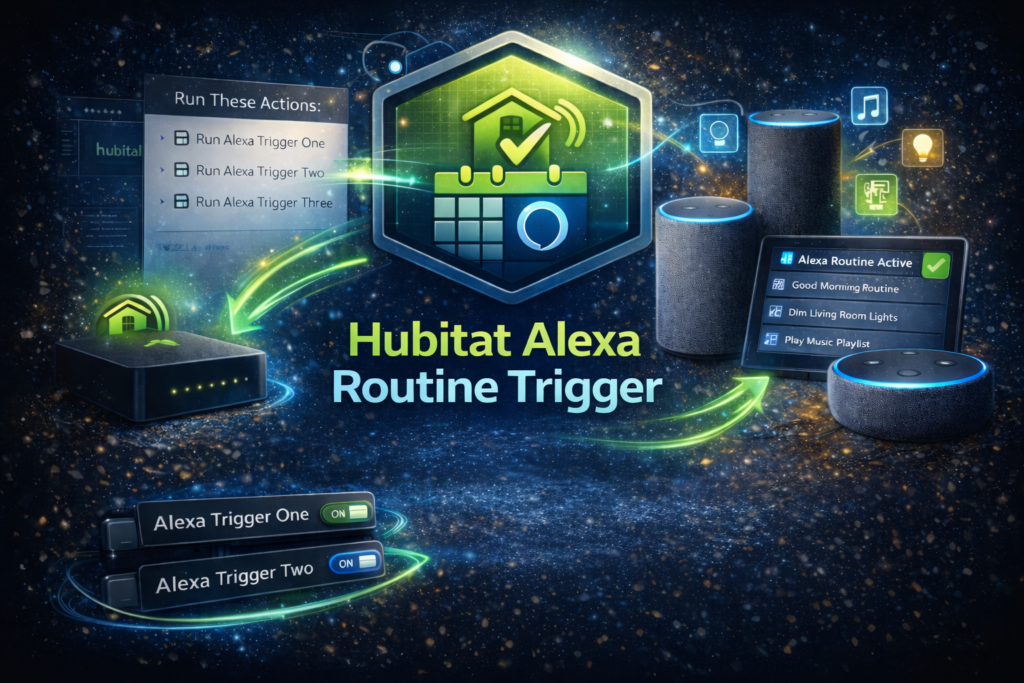
    Hubitat Alexa Routine Trigger is a Hubitat app + virtual device drivers that let you trigger Alexa routines from Hubitat using virtual contact sensors. Hubitat “opens” the contact sensor, Alexa sees the Open event, and your routine runs. The contact sensor then auto-closes after a configurable delay so it is ready for the next trigger.

    Common use cases

    • Trigger Alexa routines from Hubitat automations
    • Use Hubitat rules to drive Alexa announcements, music, smart plugs, scenes, and more
    • Fire multiple Alexa routines in a controlled sequence using trigger groups (advanced)

    How it works

    • The app creates one or more virtual contact sensors that act as Alexa triggers.
    • Hubitat automations (Rule Machine, Button Controller, schedules, etc.) activate the trigger.
    • Alexa runs a routine when the contact sensor reports Open.
    • The device auto-resets (closes) after a defined number of seconds.

    Setup and configuration

    Two setup options
    Option A – Single trigger (recommended)
    Create one virtual contact sensor, expose it to Alexa, and build one Alexa routine that triggers on Open.

    Option B – Trigger group (advanced)
    Create multiple virtual contact sensors plus a group controller switch. When you activate the group, it fires the triggers in order, with an optional delay between each one. This is useful when you want Hubitat to trigger multiple Alexa routines sequentially and reliably.

    Prerequisites

    • Hubitat Elevation hub
    • Amazon Alexa account + Alexa app
    • Hubitat built-in integration: Amazon Echo Skill (required so Alexa can discover the trigger devices)

    Important: this project relies on Hubitat’s Amazon Echo Skill. It does not replace it.

    Install (Hubitat)
    You will install:

    1. the Hubitat app
    2. the virtual device drivers used by the app

    Install the drivers

    • Add each driver under Drivers Code in Hubitat and save.

    Install the app

    • Add the app under Apps Code in Hubitat, save, then add it as a User App.

    Create your triggers
    Single trigger

    • Pick a device name
    • Set Reset after (seconds)
    • Set Ignore repeated triggers from Hubitat within (ms)
    • Create the trigger device

    Trigger group (advanced)

    • Pick a group name
    • Choose the number of trigger devices
    • Set Reset after (seconds)
    • Set Ignore repeated triggers from Hubitat within (ms)
    • Set Delay between trigger devices (ms)
    • Create the trigger group

    Alexa setup (required)
    Step 1 – enable Hubitat’s Amazon Echo Skill

    • In Hubitat, add the built-in Amazon Echo Skill app and link it to Alexa.

    Step 2 – expose your trigger device(s) to Alexa

    • In the Amazon Echo Skill app, select the trigger device(s) created by this project.
      • Single trigger: select the virtual contact sensor
      • Trigger group: select each trigger device (contact sensors). Optionally also expose the group controller switch.

    Step 3 – discover devices in Alexa

    • In the Alexa app, run device discovery. The triggers should appear as contact sensors.

    Create Alexa routines
    Create one Alexa routine per trigger device:

    • When this happens – Smart Home – select the contact sensor – choose Open
    • Add the actions you want Alexa to run
    • Save

    Tip for trigger groups
    Each trigger device maps to its own Alexa routine. When you run the group from Hubitat, it fires trigger 1, then trigger 2, then trigger 3, etc., using the delay you configured.

    Understanding the key settings
    Reset after (seconds)
    How long the trigger stays Open before it automatically closes again. Default is typically 5 seconds. Setting this to 0 disables auto-close (not recommended for most users).

    Ignore repeated triggers from Hubitat within (ms)
    Prevents accidental double-fires caused by rapid repeated events. Set to 0 to disable. Applies to both single triggers and trigger groups.

    Delay between trigger devices (ms) (groups only)
    Spacing between each trigger firing when you run the group. Set to 0 to fire all triggers at the same time. If Alexa misses triggers, try 300–800 ms.

    Testing
    Recommended test order:

    1. Confirm Alexa can see the trigger device after discovery
    2. Create an Alexa routine that triggers on Open
    3. In Hubitat, use the app’s test function to fire the trigger
    4. Watch the Alexa routine run, then confirm the contact sensor auto-closes

    Troubleshooting
    Alexa routine does not trigger

    • Confirm the trigger device is selected in Hubitat’s Amazon Echo Skill app
    • Re-run Alexa device discovery
    • Confirm the routine triggers on Open (not Close)
    • Increase Reset after (seconds) slightly (example: 7–10)
    • For groups, increase Delay between trigger devices (ms) to 300–800

    Triggers fire inconsistently in a group

    • Increase Delay between trigger devices (ms)
    • Avoid extremely low delays unless your environment is proven stable

    Double-fires

    • Increase Ignore repeated triggers from Hubitat within (ms) (example: 250–750)

    Security and privacy notes

    • This project creates local virtual devices and uses Hubitat’s Amazon Echo Skill to share them with Alexa.
    • Alexa routine execution occurs in Amazon’s ecosystem (as expected for Alexa routines).
    • No additional cloud services are required by this project.

    Support

    If you need help, use the Support page on this site and include:

    Relevant logs or screenshots (redact any sensitive details)teps to reproduce, and any relevant logs (redacting keys/tokens).

    • Project name and version
    • Hubitat model/firmware
    • What you expected vs what happened
    • Steps to reproduce

  • Meross Mini Plug Driver

    Control your Meross device locally

    v1.4.8

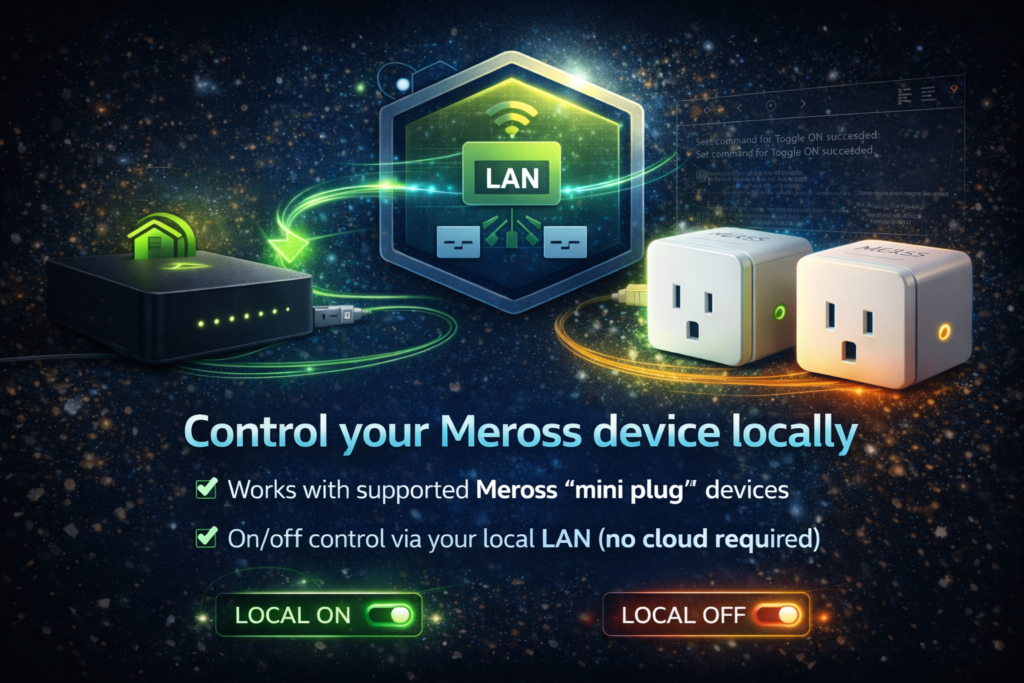
    This Hubitat custom driver provides local LAN control for compatible Meross “mini plug” devices that support the classic Meross local API. The goal is simple: reliable on/off control without depending on cloud availability or introducing unnecessary latency.

    Why this exists

    Many Meross devices can be controlled locally on your network, but compatibility varies by model and firmware. This driver is designed to support common local control patterns (including both Toggle and ToggleX variants) and to behave like a standard Hubitat Switch so you can use it anywhere in Hubitat automations.

    Devices

    This has been tested on the following devices:
    Model: MSS110
    Firmware: 1.1.28 through 6.2.5
    Hardware: 1.0.1 through 6.0.0

    Key features

    • Local on/off control and refresh (no cloud dependency)
    • Supports common Meross local control variants (Toggle and ToggleX)
    • Toggle-only option for older plugs like MSS110
    • Channel support for devices that require it
    • More resilient response parsing across typical Meross payload formats
    • Automatically sets Hubitat LAN addressing (deviceNetworkId) based on the IP you provide for more reliable LAN routing
    • Logging options for troubleshooting (Off, Basic, Debug)
    • Built-in diagnostics fields: connectionStatus, lastRefresh, lastRefreshResult, lastError
    • Quick validation via Run Test (records last test time and result)

    Requirements

    • Hubitat Elevation hub on the same LAN as the plug
    • A stable IP address for the plug (DHCP reservation strongly recommended)
    • Your Meross local key (treat this like a password)
    • A Meross device and firmware that still supports local LAN control

    Meross local key note

    The Meross app does not display the local key. You must retrieve it using a third-party method. The project documentation includes a step-by-step guide for the Chrome DevTools login.js method.

    Important note on compatibility

    Not every Meross plug exposes local endpoints, and some firmware updates may reduce or remove local functionality. If your device does not respond to local control, the driver cannot force it. This project is best suited for users who want local-first automations and are comfortable reserving device IPs and providing the Meross local key.

    Installation and configuration

    Installation (Hubitat)

    1. In Hubitat, go to Drivers Code and create a new driver.
    2. Paste the driver code and save.
    3. Create a new device and assign this driver as the device type.
    4. Open the device page and set preferences (IP address, key, and channel if needed).
    5. Save preferences, then click Refresh to pull the current state, then test On/Off.
    6. Optional: run Run Test to validate connectivity and key configuration.

    Configuration tips
    Device IP Address
    Reserve the plug’s IP in your router so it never changes. If the IP changes, local control will break until updated.

    Key
    Paste your Meross local key. Do not share it in screenshots or logs.

    Device channel
    Most single-outlet mini plugs use channel 0. If your device has multiple controllable outlets, a different channel may be required.

    Toggle vs ToggleX
    Some older devices respond better to the original Toggle method. If commands fail, switch between Toggle-only and ToggleX (and confirm the channel).

    Using the driver in automations
    Once configured, the device behaves like a normal Hubitat switch. Use it in Rule Machine, WebCoRE, dashboards, and integrations exposed through Hubitat (including voice assistants).

    Troubleshooting
    If On/Off does not work

    • Confirm the IP is correct and reachable from the hub
    • Confirm the plug has a DHCP reservation
    • Verify the key is correct
    • Try switching between Toggle-only and ToggleX
    • Confirm channel is set correctly (often 0)
    • Check the device’s diagnostics fields: connectionStatus, lastRefreshResult, lastError
    • Set Logging to Debug, reproduce the issue, review Hubitat Logs, then return Logging to Off or Basic

    If state does not update reliably

    • Click Refresh and confirm lastRefreshResult shows Success
    • Check connectionStatus and lastError for actionable details
    • If needed, set Logging to Debug, reproduce the issue, then review Hubitat Logs (redact sensitive details)

    Support

    If you need help, use the Support page on this site and include: project name, version, Hubitat firmware, plug model (if known), steps to reproduce, and relevant logs (redacting keys/tokens).

  • CT Duplicate Content

    One-click duplication for posts, pages, and custom post types

    No Release

    If you build content in WordPress long enough, you end up recreating the same structures over and over – landing pages, service pages, event templates, policy pages, product writeups, and similar layouts.

    CT Duplicate Content is a lightweight plugin that helps you safely create duplicates of posts and pages so you can work faster without breaking your originals. Duplicates are created as drafts by default, so nothing publishes accidentally.

    What it does

    • Duplicates posts and pages from the WordPress admin
    • Copies content, excerpt, hierarchy (parent/menu order), and discussion settings
    • Preserves taxonomies (categories, tags, and custom taxonomies for that post type)
    • Copies post meta / custom fields (including featured image)
    • Sets the duplicate’s author to the currently logged-in user for clarity

    How to use

    1. Install and activate the plugin
      • WordPress Admin – Plugins – Add New – Upload Plugin
    2. Duplicate content
      • Go to Posts or Pages in the admin and use the Duplicate action to create a new draft copy

    Notes

    • The plugin respects WordPress capabilities – users still need normal editing permissions for the content they are duplicating.
    • A small set of internal WordPress meta keys are skipped: _edit_lock, _edit_last, _wp_old_slug.

    Compatibility

    • WordPress 6.0+
    • PHP 7.4+

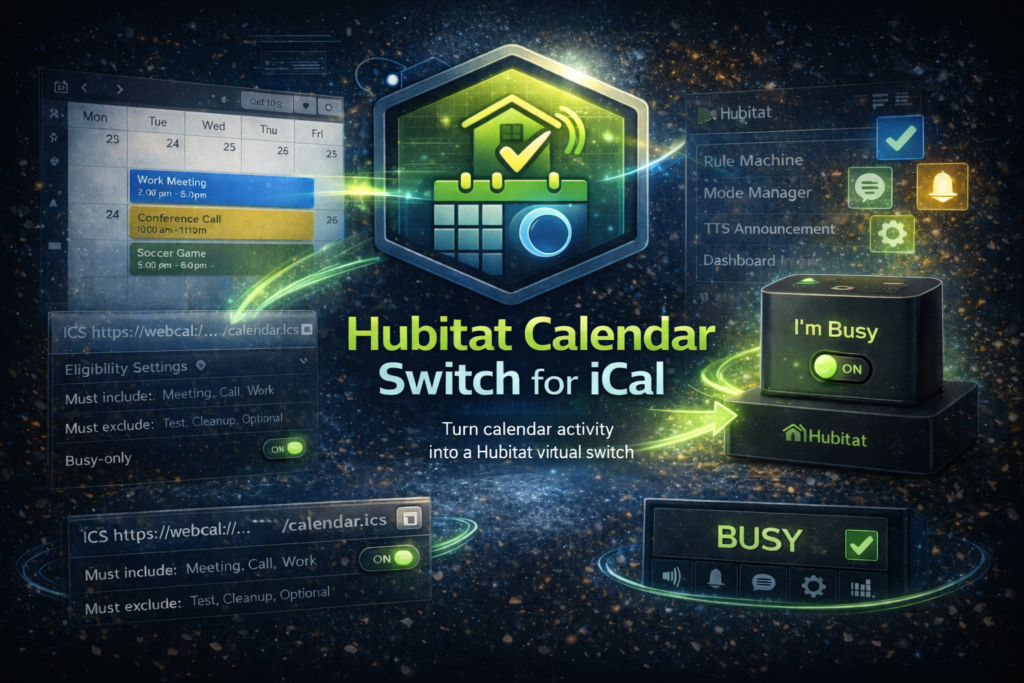
  • Hubitat Calendar Switch for iCal

    Turn calendar activity into a Hubitat virtual switch

    v1.0.0

    If you use Hubitat and keep your life in a calendar, you’ve probably wanted a simple way to translate “I’m busy” into automation logic. Hubitat iCal Switch does exactly that.

    This driver monitors an iCal/ICS feed and maps eligible calendar activity to a virtual switch. When an event is active (based on your rules), the switch turns on. When you’re free again, it turns off. From there, you can use the switch in Rule Machine, Mode Manager, notifications, dashboards, and more.

    Note: if you need to log in to your Outlook or Google calendar, check out the OAuth version.

    What it does

    • Monitors an iCal/ICS calendar feed and tracks upcoming and active events
    • Turns a virtual switch on or off based on eligible calendar activity
    • Filters events using keyword include or exclude rules
    • Supports event eligibility controls (busy-only, tentative, declined, all-day)
    • Uses the hub’s timezone for display and scheduling
    • Handles Outlook / Microsoft 365 timezone metadata (X-WR-TIMEZONE and VTIMEZONE)
    • Expands common weekly RRULE patterns and applies RECURRENCE-ID overrides
    • Uses transition-based polling at event boundaries plus a regular polling cadence for resilience

    Why this is useful

    • Quiet hours when a “Meeting” event is active
    • Auto-silence announcements, chimes, or TTS during appointments
    • Pause robot vacuums or reduce HVAC setbacks while you’re on a call
    • Trigger “work mode” only when your calendar shows you’re busy
    • Drive status indicators on dashboards (Busy / Free)

    How it works (high level)

    1. Provide an iCal/ICS feed URL
    2. The driver periodically checks for calendar updates
    3. Events are evaluated against your eligibility and keyword rules
    4. The driver determines whether an eligible event is currently active
    5. The virtual switch is updated accordingly

    Getting started

    Prerequisites

    • A Hubitat Elevation hub
    • An iCal/ICS feed URL from your calendar provider

    Install and configure

    1. Add the driver code to Hubitat (Drivers Code)
    2. Create a new Virtual Device using the Hubitat iCal Switch driver
    3. Paste your ICS URL into the device preferences
    4. Configure eligibility settings and keyword filters
    5. Save preferences, then verify switch behavior as events start and end

    Support

    If you need help, use the Support page on this site and include:

    Relevant logs or screenshots (redact any sensitive details)teps to reproduce, and any relevant logs (redacting keys/tokens).

    • Project name and version
    • Hubitat model/firmware
    • What you expected vs what happened
    • Steps to reproduce